Creating Lathe Stock
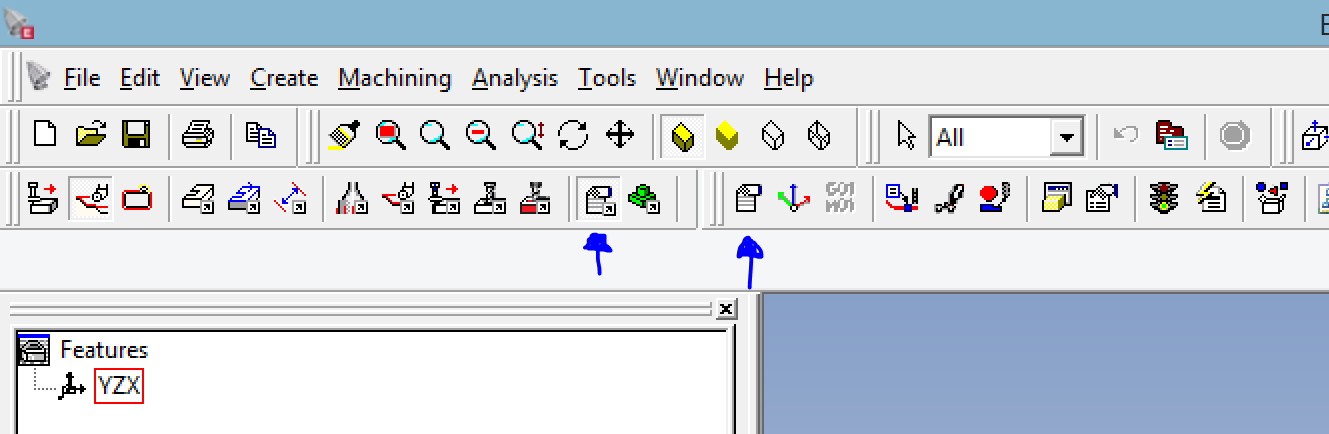
To create lathe stock, start by clicking the “Common Machining” button, and then “Set up” button.
** Note- be sure you have the “solid turn” button, second from the left, selected.
The SolidTurn Machine Setup window will appear.
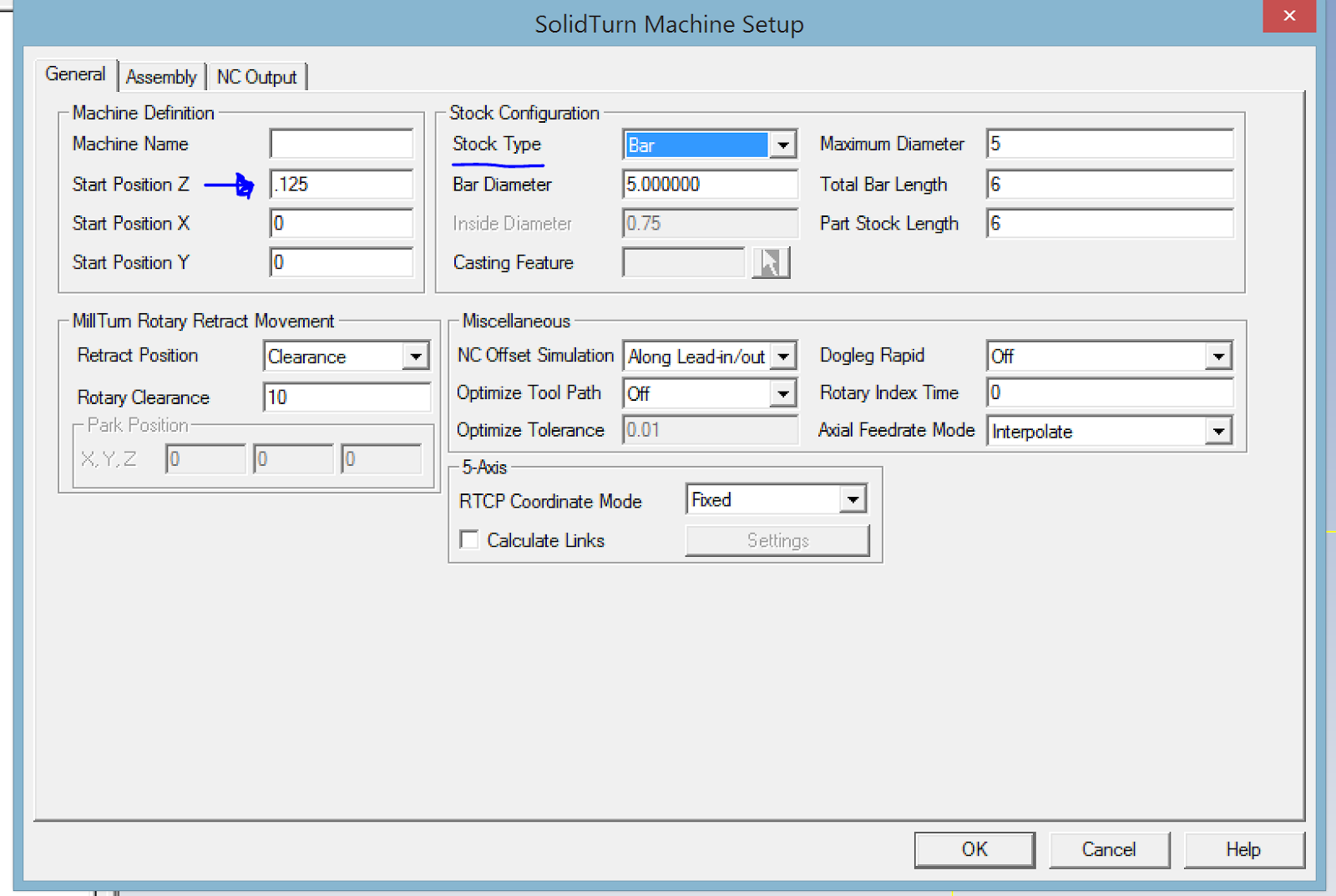
Click the “Stock Type” drop down menu to select from Bar, Tube, or Casting.
To use a casting as stock, you must first create a feature, and then select it on this menu.
In this example we will use Bar. My bar is 5” Diameter, with a 6” length.
*Note the “Start Position Z” has .125, this is to allow material for facing off. 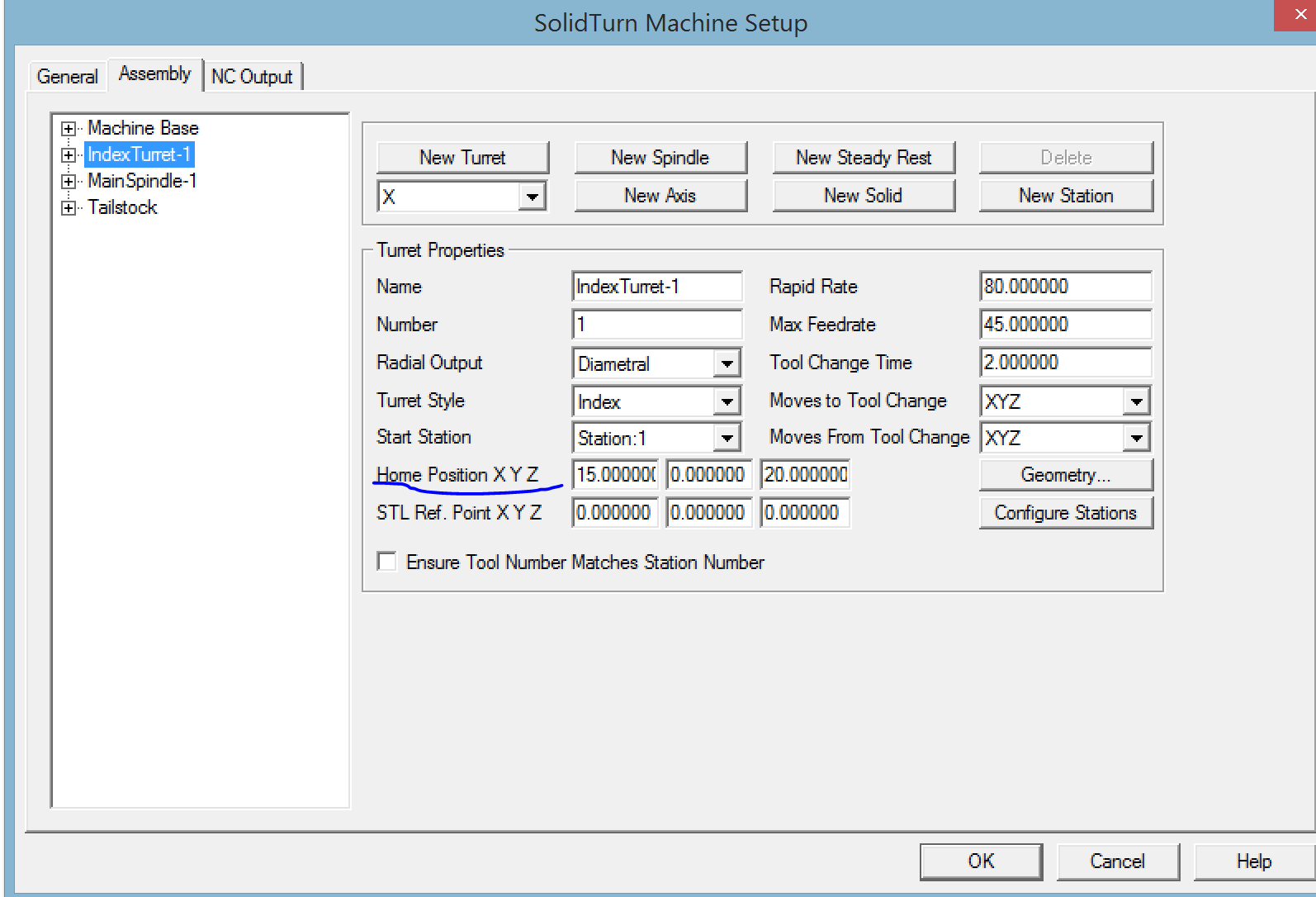
The Assembly tab is where you can change settings for the Turret, Spindle/Chuck, and Tailstock.
Here I have changed the Home Position of the Index Turret-1 to 15.00 X and 20.000 Z.
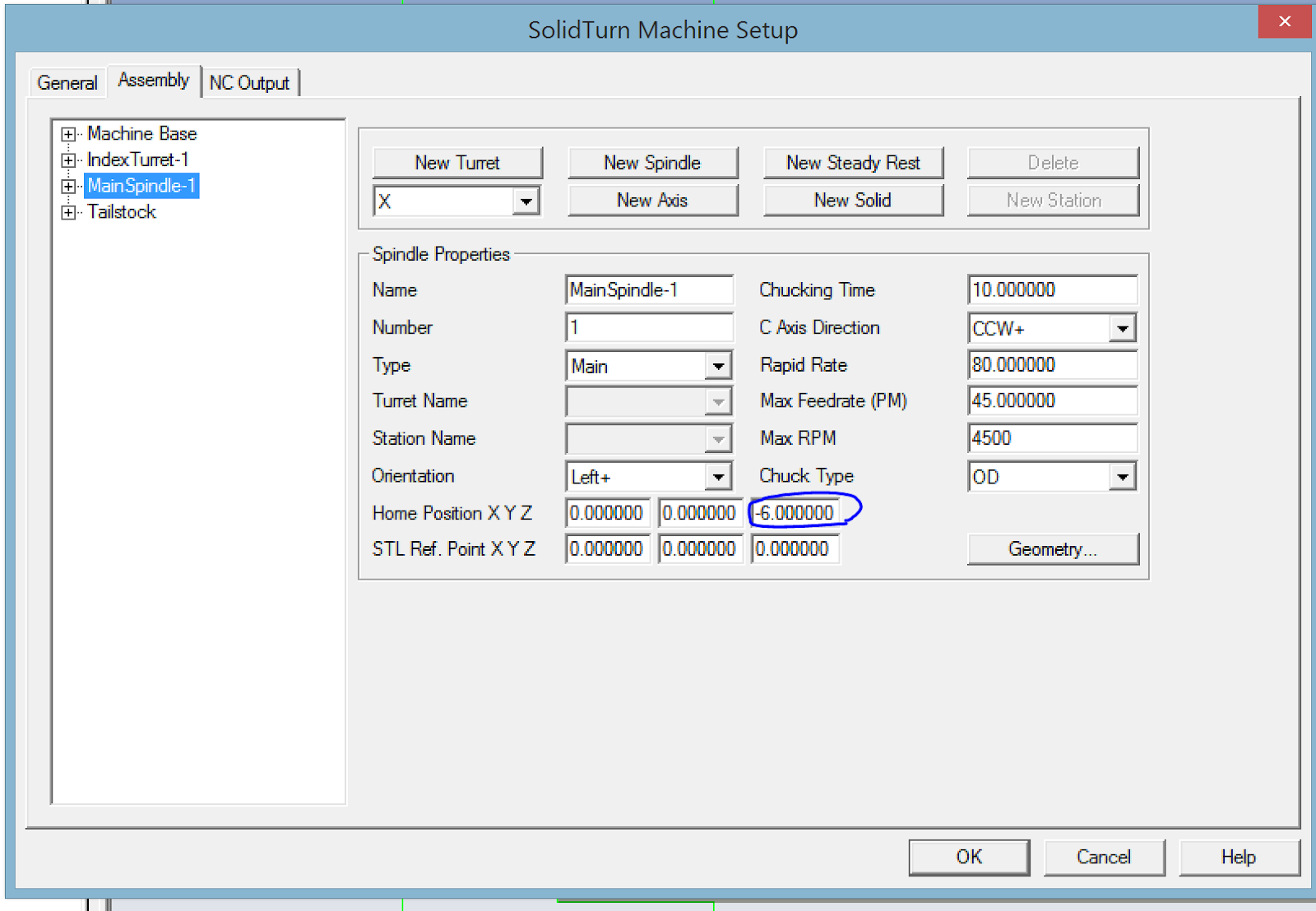
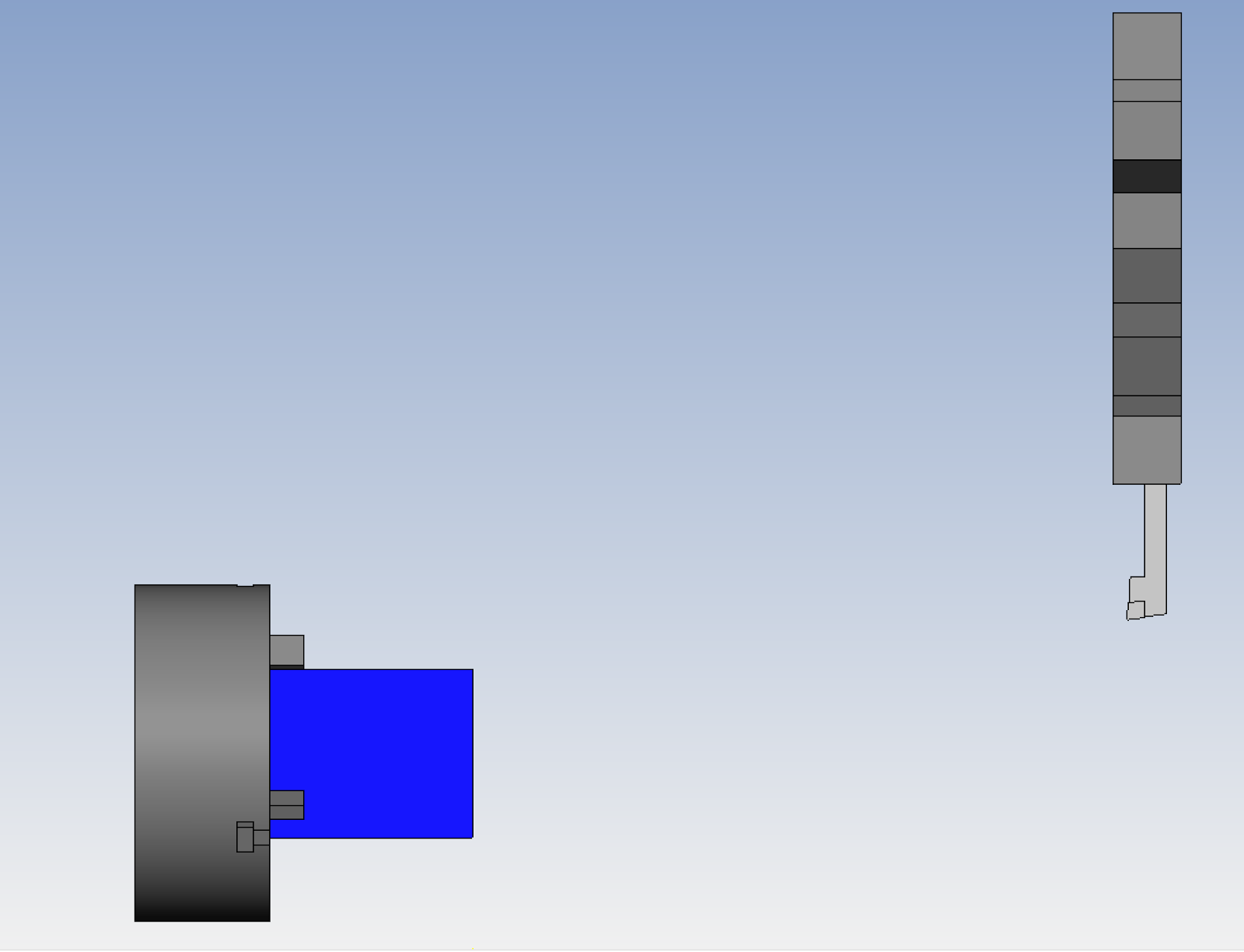
Here I have changed the Home Position under MainSpindle-1, to -6.000 in Z. This is to correctly position the chuck so that it hold the bar stock properly in simulation.
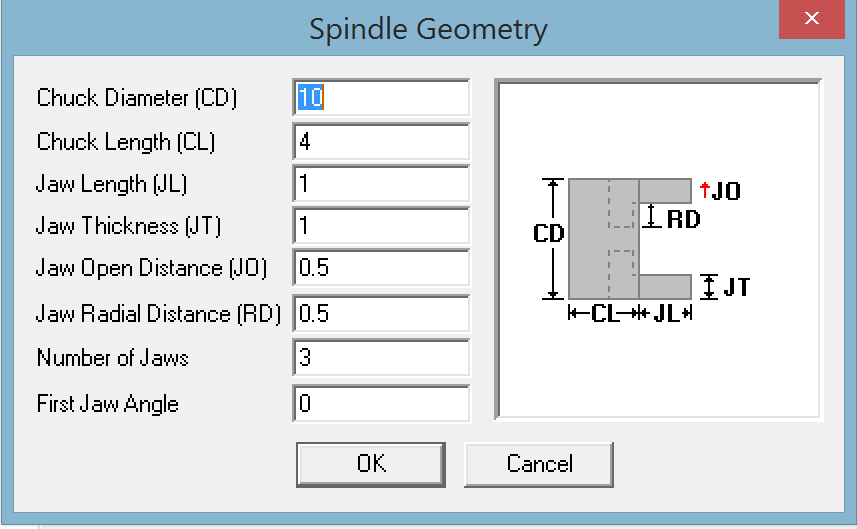
Click on Geometry to change the chuck/ spindle sizes.
Now click on Simulation, and check to make sure everything looks right.
For more Esprit CAM tutorials and videos see:
More Esprit CAM Tutorials
Esprit CAM Tutorial-Creating & Adding Tools
Esprit Lathe Tutorial-Drawing 2D Geometry
Esprit CAM Tutorial- Creating & Setting Up Lathe Stock
ESPRIT Mill Tutorial- B Axis Setup
Esprit CAM Tutorial: Lathe Sub-Spindle Setup
Esprit CAM Tutorial: Lathe Basics
Esprit CAM Tutorial: Introduction To Esprit CAD/CAM
Esprit CAM Tutorial: Orientating Part Model For Lathe Operations
Esprit CAM Tutorial: Setting Mill Up Stock
Esprit CAM Tutorial: Creating Layers
Esprit CAM Tutorial: Orient Mill Parts